
Lead tracking should tell you what happens after someone fills out a form on your website. But what happens when a visitor sees a confirmation message, your analytics records a conversion, and the lead never appears in your CRM?
For B2B SaaS marketing teams, this gap can create a serious blind spot. A campaign may appear to generate leads, yet sales sees fewer contacts than expected. Marketing starts checking campaign performance, sales questions the lead numbers, and someone eventually has to investigate the website, form integration, and CRM.
The tricky part is that the form can appear to work perfectly. The visitor submits their details, the page displays a success message, and an analytics event fires. None of those signals proves that the CRM received and saved the lead.
Reliable lead tracking depends on the full journey from the first form interaction to the contact record in your CRM. Every step needs to pass the right information to the next one, with enough visibility to catch errors before they affect reporting or sales follow-up.
In this guide, we’ll look at where leads can disappear, how to trace a submission through the systems involved, and what B2B SaaS teams can do to make their tracking more reliable.
Why Lead Tracking Can Fail Even When a Form Submission Succeeds
A success message usually confirms that the website has completed a specific step. Depending on how the form is built, it may mean the browser accepted the submission, the server received the request, or a form service returned a successful response.
That message does not always confirm that the CRM saved a new lead.
Consider a visitor who fills out a demo request form. The website displays a confirmation message, and Google Analytics records a conversion. However, the integration that sends the visitor’s details to the CRM encounters an error. Marketing counts the conversion, but sales never receives the contact.
From the visitor’s perspective, everything worked. From the business’s perspective, the lead journey stopped before it reached the sales team.
Each System Confirms a Different Part of the Journey
A typical lead journey may involve several separate systems:
- Website form: Collects the visitor’s name, email address, company, and other details.
- Form handler or backend: Receives the submission and processes the data.
- Integration or API: Transfers the lead information to another system.
- CRM: Creates or updates the contact or lead record.
- Analytics and attribution tools: Record conversion activity and campaign details.
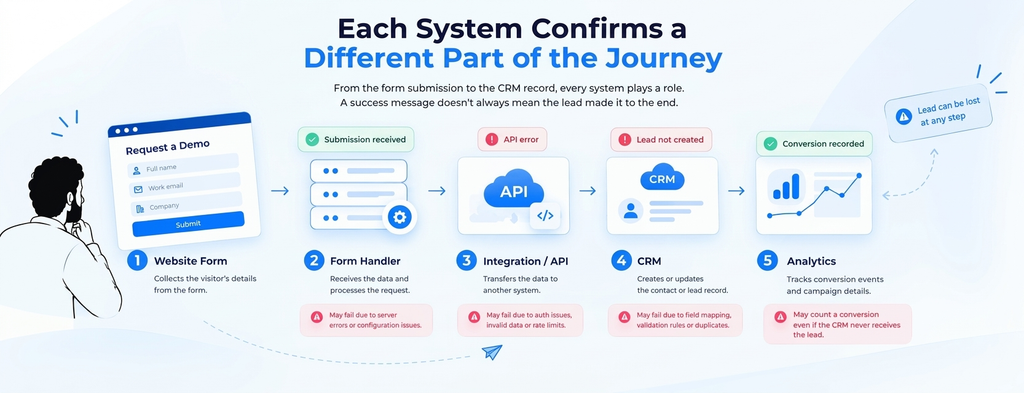
Some websites use a form platform that handles several of these steps. Others rely on custom code, automation tools, webhooks, or multiple integrations. The exact setup changes, but the same principle applies: a successful step does not guarantee that every later step succeeded.
How Lead Tracking Gaps Affect Marketing and Sales
Missing leads can distort campaign reports, delay sales follow-up, and make a successful campaign look weaker than it really is. The reverse can happen, too: analytics may count repeat submissions or conversions that never become usable CRM records.
Without reliable lead tracking, teams may struggle to answer basic questions. How many people requested a demo? Which campaigns generated contacts that sales could follow up with? Did a drop in leads come from campaign performance or a technical failure?
Before changing ad budgets or rewriting a landing page, make sure the systems handling the leads are reporting what actually happened.
The Most Common Places a Lead Can Disappear
When a lead fails to reach the CRM, the cause is often somewhere in the handoff between systems. Start by checking the following areas, then use logs and test submissions to narrow down the exact failure point.
1. Lead Tracking Failures in Form Integrations
A form may collect the visitor’s details correctly while the next request fails. The integration might use an expired access token, an incorrect endpoint, a missing permission, or a request format that the receiving service does not accept.
For example, a CRM API may reject a request because a required field is missing. If the website still shows a generic success message, the visitor may never know that the lead was not saved.
Check the integration logs, request status, and error response where available. A successful browser interaction alone is not enough to confirm that the CRM received the data.
2. Field Mapping or Validation Rules Reject the Lead
Even when a request reaches the CRM, the data may not match the fields or rules expected by the system. A form might send a company name under the wrong field, use an unexpected date format, or leave a required CRM field empty.
Validation rules can also block a record. For example, the CRM may require a lead source, a valid email address, or a value from a predefined list. If the integration sends an unsupported value, the CRM may reject the request or leave the record incomplete.
Compare the form fields with their destination CRM fields, and check whether the integration transforms values before sending them. Pay attention to recently changed forms, CRM fields, and validation rules, since a small configuration change can interrupt the flow.
3. Duplicate Rules Prevent a New Lead From Being Created
A missing lead isn’t always a lost submission. Some CRMs detect an existing contact or lead and block a new record from being created.
This can happen when someone submits a demo request using an email address already in the CRM. Depending on the duplicate rules, the system may reject the new record, update an existing contact, or flag the submission for review. The behavior varies by CRM configuration.
Check the duplicate handling rules and search for the submitted email address across both contacts and leads. The person may already exist, even if the sales team doesn’t see a new lead in the expected view.
For example, Salesforce documents cases where duplicate rules prevent website form submissions from creating new lead records.
<Cite refs={["turn878168search0","turn878168search2"]} />4. CRM Workflows Change or Redirect the Record
Sometimes the CRM receives the submission, but the lead ends up somewhere the team isn’t looking.
Assignment rules may send it to another sales representative. Automation may change its status, associate it with an existing contact, or move it into a different queue. Filters and permissions can also make a record difficult to find.
Search the CRM using the email address from your test submission, then check the record’s creation time, owner, status, and activity history. Review any automation triggered when a new lead arrives.
If the record exists but doesn’t appear in the expected dashboard or lead list, investigate the CRM’s views, filters, and assignment rules before changing the website integration.
5. Analytics Counts a Conversion That the CRM Never Receives
Analytics and CRM records measure different things. An analytics event can fire when a visitor clicks a submit button or reaches a confirmation page, even if the integration fails later.
This can inflate reported conversions and make campaign performance difficult to assess. A campaign might appear to generate plenty of leads while sales receives fewer contacts than expected.
Review the event configuration to understand exactly what triggers a conversion. Where possible, track confirmed submission success separately from the initial button click, and compare those events with CRM records.
Be careful with the numbers: one person may submit a form more than once, and a CRM may update an existing contact without creating a new lead. Those cases can explain differences between the totals without indicating a technical failure.
How to Fix Lead Tracking Issues From Form to CRM
Once you understand the possible failure points, the next step is to follow a test submission through the systems. This helps you identify where the data stops moving, instead of guessing which tool is responsible.
Step 1: Submit a Test Lead
Use a controlled test with a unique email address and realistic values for the required fields. Record the time of submission, the page URL, and the information entered.
If the form captures campaign details, check whether the relevant UTM parameters or hidden fields are included. Avoid using real customer information in test records.
Step 2: Confirm That the Website Received the Submission
Check the form platform, server logs, or browser developer tools, depending on how the form works. Look for the submission request and its response.
A successful response confirms only what that specific endpoint is designed to confirm. If the website sends data to an intermediate service, you still need to verify the next step.
Step 3: Check the Integration or API Response
Follow the request that transfers the form data to the CRM. Look for authentication failures, invalid field values, missing required data, rate limits, and server errors.
If the integration uses webhooks or an automation platform, review its execution history. Check whether the workflow ran, whether each action succeeded, and whether an error message explains the failure.
For custom integrations, make sure logs contain enough information to diagnose failures without exposing passwords, access tokens, or unnecessary personal data.
Step 4: Search the CRM for the Test Record
Search for the test email across the relevant contact and lead records. Check for existing records, duplicate handling, assignment rules, and automation that may have changed the record after submission.
If the CRM rejected the request, use the available error details to identify the field or rule that caused the problem. For example, Microsoft’s documentation on troubleshooting failed marketing form submissions explains how submission logs can help identify failures when records cannot be created or updated.
Step 5: Repeat the Test After Fixing the Cause
Once you’ve corrected the issue, submit another test and follow the same path. Confirm that the CRM creates or updates the expected record, the relevant fields contain the right values, and the lead appears in the correct place.
Also verify that analytics records the intended conversion. If the fix involves resubmitting failed submissions, check for duplicates before replaying them, since some systems may create another record when a submission is processed again.
How to Prevent Missing Leads From Becoming a Recurring Problem
Finding one missing lead is useful. Making sure the same problem doesn’t quietly affect the next campaign is even more important.
A reliable setup combines routine testing, clear ownership, useful error logs, and regular checks between form submissions and CRM records.
Test Forms After Important Website Changes to Verify Lead Tracking
A form can break after a website release, a CMS update, a CRM field change, or an integration adjustment. Add form testing to the release process whenever a change could affect submission behavior.
Form reliability is also part of keeping the wider website healthy. In The Hidden Cost of Website Neglect at Growing Tech Companies, you’ll find how overlooked website issues can quietly affect lead generation and business results.
Test the full journey, including the confirmation message, CRM record creation, required fields, lead assignment, and conversion tracking. A form that looks correct on the page still needs to pass data through every connected system.
Monitor Lead Tracking Errors and Failed Submissions
Make sure someone can see when a form integration fails. Depending on the platform, this could involve error notifications, automation logs, API monitoring, or alerts for failed workflow runs.
Choose a process that fits the site’s complexity. A small site may only need regular checks and clear error notifications, while a larger marketing operation may benefit from automated monitoring and alerts.
The important part is to make failures visible. If the team discovers missing leads only after sales reports a problem, the website may have been losing opportunities for days.
Compare Form Submissions With CRM Records to Verify Lead Tracking
Review form submissions and CRM records on a regular schedule. Look for unexpected gaps, sudden changes in conversion counts, and forms that generate submissions but few usable contacts.
Compare equivalent measures wherever possible. Account for repeat submissions, updates to existing contacts, spam filtering, and differences in how each platform counts conversions.
Give the process a clear owner. Marketing may own campaign reporting, while engineering or a WebOps lead monitors the integrations and investigates technical failures. Both teams should know who responds when the numbers stop matching.
Keep Changes to Forms and Integrations Documented
Record important changes to form fields, CRM mappings, API connections, validation rules, and automation. When a problem appears, the team can check what changed and narrow down the cause more quickly.
This is a practical part of website operations: the forms, analytics, and integrations that support marketing need ongoing care, just like the pages visitors see.
Final Thoughts
A form can look healthy on the website while the process behind it quietly loses leads. That’s why reliable lead tracking needs more than a confirmation message or a conversion event. The full journey, from the visitor’s submission to the CRM record, needs to work as expected.
When a lead goes missing, trace one test submission through each system, inspect the logs, and confirm what happened inside the CRM. Once you find the cause, add the right checks and monitoring so the same problem doesn’t go unnoticed during the next campaign.
For B2B SaaS teams, this is an important part of WebOps. The website, forms, analytics, and CRM integrations all support the path from marketing activity to sales conversations. Keeping those connections healthy helps teams make better decisions and gives sales a more reliable stream of leads.
Seeing these patterns at your company?
Book a free WebOps Diagnostic. I'll review your site before the call and share specific observations.
Book a Free Call →Frequently Asked Questions
A successful form message confirms that a specific step has completed, but it doesn't always mean the CRM saved the lead. The integration may have failed, the CRM may have rejected the data, or duplicate rules may have prevented a new record. Check the submission logs, integration response, and CRM records to identify where the process stopped.
Submit a test lead using a unique email address, then follow it through the form handler, integration, and CRM. Confirm that the request succeeds, the required fields map correctly, and the expected record appears in the CRM. Also check assignment rules and automation to make sure the record reaches the right place.
Yes. Analytics can record a conversion when a visitor clicks a submit button or reaches a confirmation page, even if a later integration request fails. To improve lead tracking, define what counts as a successful conversion and compare analytics events with CRM records. Remember that repeat submissions and updates to existing contacts can also cause differences in the totals.
Common causes include failed API requests, expired credentials, incorrect field mappings, missing required values, duplicate rules, and CRM automation that changes or redirects records. Reporting filters and permissions can also make a lead difficult to find. Checking each stage of the form-to-CRM process helps narrow down the cause.
B2B SaaS teams can reduce missing leads by testing forms after relevant website changes, monitoring integration errors, checking CRM field mappings, and comparing form activity with CRM records. Clear ownership also matters: marketing, sales, and engineering should know who monitors the process and who investigates when submissions fail.
